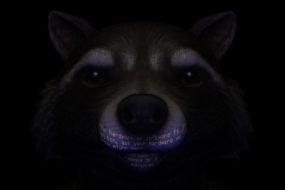
If you’ve ever wondered how to get that rich, stylized Pixar-like shading in your Maya projects, you’re not alone. One of the most common questions I get is how to achieve that warm, handcrafted look without spending weeks on trial and error. That’s exactly why I created this tutorial — to demystify the process and walk you through each step of building a Pixar-style character shader using Arnold inside Maya.
What You’ll Learn
In this tutorial, I guide you through how to create a pixel-style (Pixar-inspired) character shader using Maya’s powerful Arnold renderer. While Arnold is well-known for its high-quality output, it can also be daunting, especially if you’re new to it or just haven’t ventured deep into its settings.
You’ll learn:
How to set up a stylized shader from scratch
What each Arnold setting actually does
Why I choose certain values for diffuse, specular, and subsurface scattering
How to troubleshoot common render issues
How to configure your final Arnold render settings for the best balance of quality and performance
Why Arnold?
Arnold is built for visual fidelity. Its physically based approach gives you full control, but that also means it’s easy to get lost in the menus. This tutorial is designed to save you that headache by showing you exactly what matters and why so you can spend more time creating and less time adjusting sliders that don’t seem to do anything.
This tutorial is perfect for:
Maya users looking to level up their texturing
Beginners who want a clear, practical intro to character shading
Artists aiming for that cinematic, animated-film quality in their renders
Anyone curious about how Pixar-style shaders are built from the ground up
Exclusively to Patreon members
If you’re already a supporter, you can download the full pack right now. If not, click the link below to unlock access to this and a growing library of exclusive content including tutorials, models, project files, and premium asset packs.